🏬 Apple Store (USA) for Flexy USA
How to switch Apple ID to the United States and link a Flexy USA card for Apple Store payments
🏬 Apple Store (USA): switch region and link a Flexy USA card
Important
This guide is for the Flexy USA product (region United States).
For Flexy Travel HG, use the separate guide:
Apple Store for Flexy Travel HG.
For Flexy Singapore, the Apple ID region must be Singapore, and the card is added directly during the region change:
Apple Store (Singapore) for Flexy Singapore.
Flexy Travel SG also uses the United States region, but it has a separate guide with an important note about the Singapore issuer:
Apple Store (USA) for Flexy Travel SG.
Step 1. Change the Apple ID region to United States
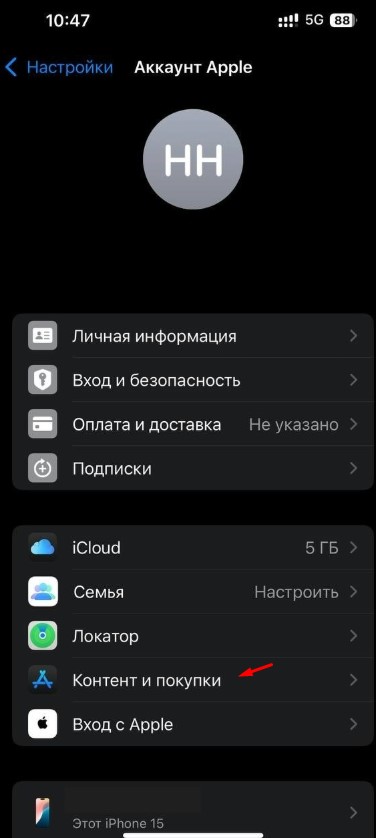
- Open Settings on your iPhone
- Tap Apple ID (your name at the top)
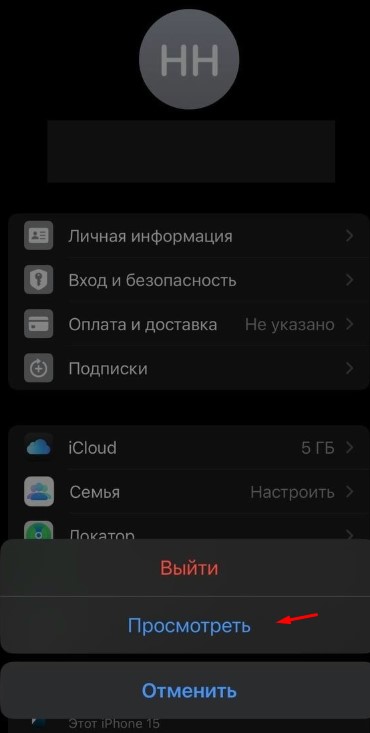
- Open Media & Purchases
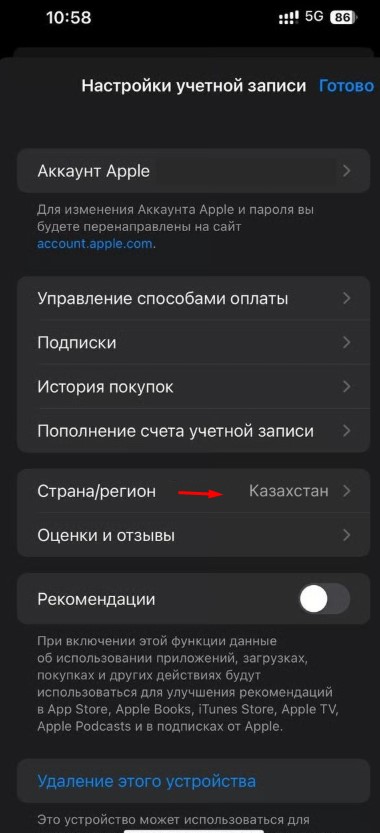
- Tap View Account
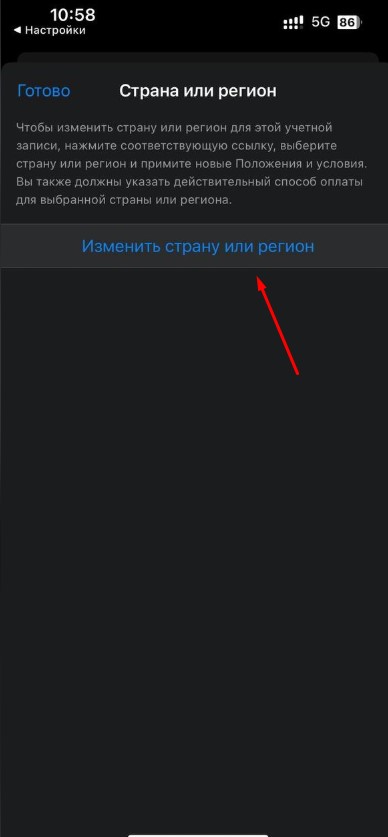
- Go to Country / Region
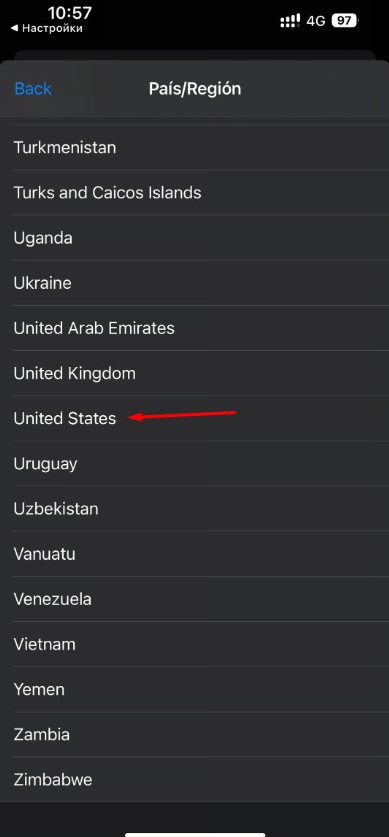
- Tap Change Country or Region and choose United States

Step 2. Fill in the billing address (USA)
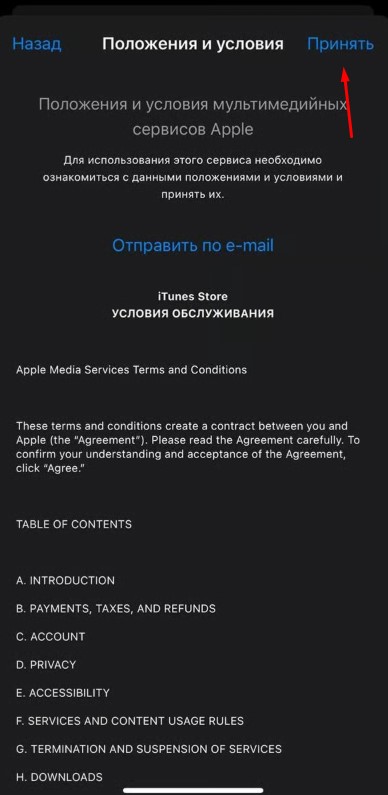
- In the Terms and Conditions window, tap Agree
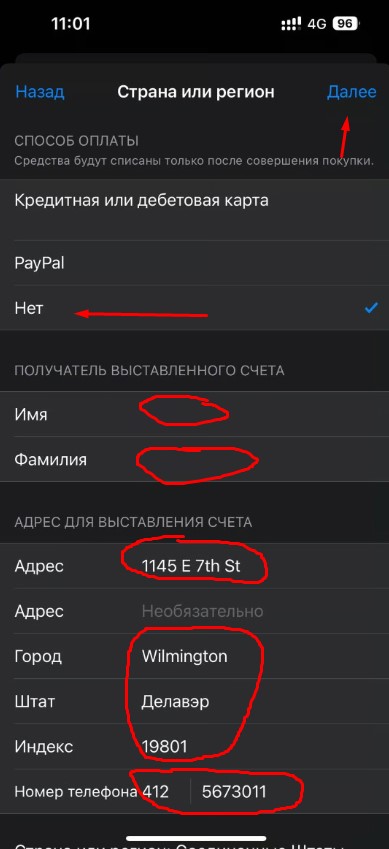
- In payment methods, choose None
- Enter your first and last name in Latin letters (your real names)
- In the same step, fill in the billing address exactly like this:
- Country: USA
- City: Wilmington
- State: DE (Delaware)
- ZIP: 19801
Address line 1: 1145 E 7th St
(if it is not accepted, try 1150 E 7th St)
- Address line 2: leave empty
Phone: 4125673011
(if it is not accepted, try 4121234567 or change the last digits)
If the form asks for a separate code field: enter 165 in the code field and 7 random digits in the phone field
Step 3. Add the card in “Payment & Shipping”
- Close all windows and return to Settings
- Tap Apple ID (your name at the top)
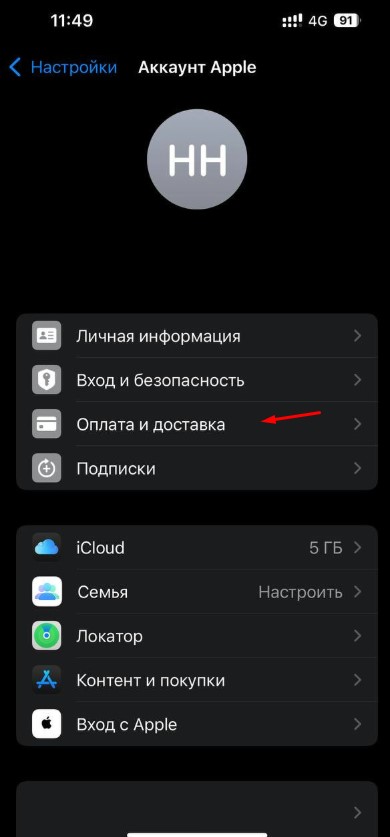
- Open Payment & Shipping
- Choose Credit / Debit Card
- Enter your card details (number, expiration date, CVV)
- Tap Done
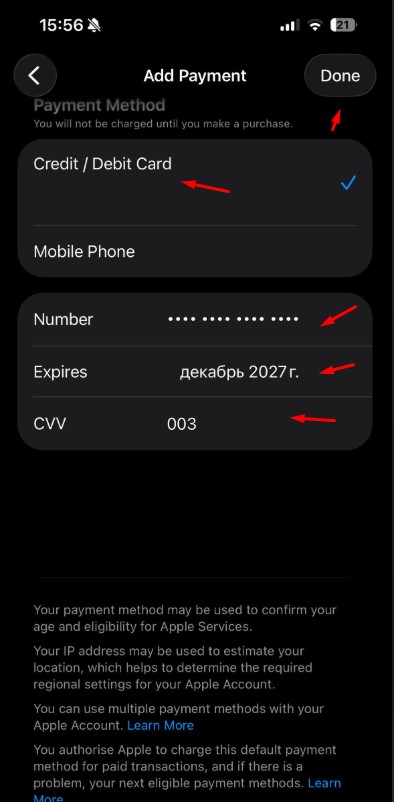
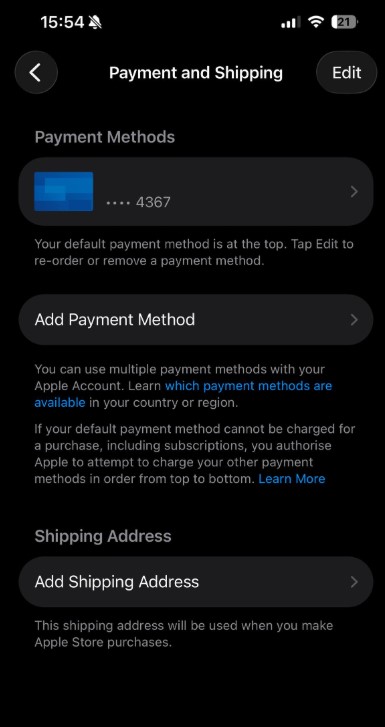
🎉 Done — the card is linked and can be used for Apple Store payments.
If it does not work (address error / card verification error)
If Apple Store / Apple ID shows “invalid address”, “card verification error”, or “billing information invalid”, in most cases the reason is one thing:
Apple did not accept the billing address or phone number. This is normal — Apple’s checks are strict and sometimes picky.
What to do (usually fixes it)
-
✅ Make sure the Apple ID region is United States (Step 1).
-
🧾 Recheck the billing address without extra characters (trailing spaces, wrong commas, line breaks, and so on).
-
🏠 If the address is not accepted — slightly change Address line 1:
- original: 1145 E 7th St
- try: 1150 E 7th St (or another nearby house number)
-
📞 If the “card verification” step fails — change the phone number:
- try another variant (for example 4121234567)
- or keep the same format but replace the last digits with random ones
- if there are separate code / number fields: 165 + 7 random digits
-
🗺️ If the error still remains — use a real address from Google Maps:
- choose any real address in the USA (preferably Wilmington, DE)
- make sure State / ZIP / City match one another
- then slightly adjust the last digits of the phone number again
Important
In Apple Store, a “card verification error” almost always means that the billing address / phone verification failed.
The most effective tactic is to slightly change Address line 1 or slightly change the phone number, or use another real address.
If the problem persists, contact support:
https://t.me/flexy_sup
Attach a screenshot of the error / verification screen and include the time of the attempt.