🤖 Add card to Google Pay (Flexy Travel SG)
How to add a Flexy Travel SG card to Google Wallet using Singapore or USA region and complete verification
💳 Google Pay for Flexy Travel SG
Google Pay (Google Wallet) is available for Flexy Travel SG cards (issuer country: Singapore).
IMPORTANT: before adding the card, change the device / Google account region from Russia to Singapore or USA. We recommend trying Singapore first.
IMPORTANT FOR BILLING: first try a Singapore billing address. If Google Wallet does not accept the card with Singapore billing, repeat the flow with a USA billing address.
IMPORTANT FOR 3DS: if the verification flow lets you choose how to receive the code, for Flexy Travel SG try Email first — this works most often. If it does not work, try Phone.
📲 If Google Wallet is not installed
Install the Google Wallet app using this link:
https://play.google.com/store/apps/details?id=com.google.android.apps.walletnfcrel
Recommendations before adding the card (important)
Before adding the card:
- 🌍 Change the region / address in your device settings or Google account from Russia to Singapore or USA. We recommend trying Singapore first.
- 🧾 For the first attempt, use a Singapore billing address. If the card is rejected, retry with a USA billing address.
- 🛡️ Turn on a VPN using any location except a Russian one. For the first attempt you can use Singapore; when switching to USA billing, use USA.
- 📍 Do not follow the Hong Kong settings: this guide is only for Flexy Travel SG.
Step 1. Add the card
- Open the Google Wallet app
- Tap Payment card
- Choose New credit or debit card
- Tap Enter details manually
- Fill in the card fields: Card number, Expiration date, CVC
- Enter the billing address below if it has not been added before
- Start with a Singapore billing address. If Google Wallet does not accept the card, retry with a USA billing address
- Tap More → Save and continue
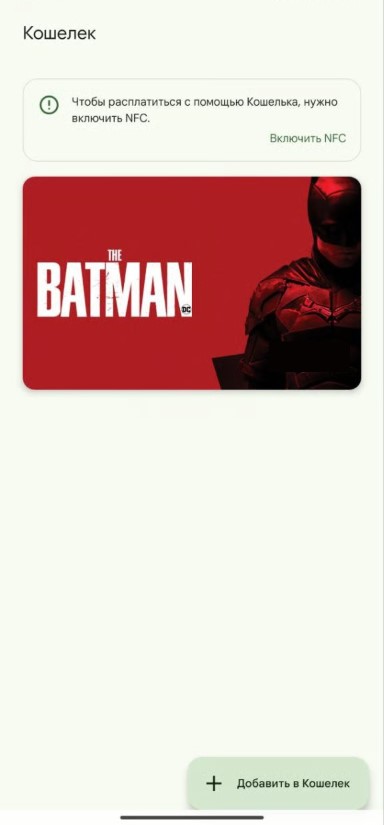
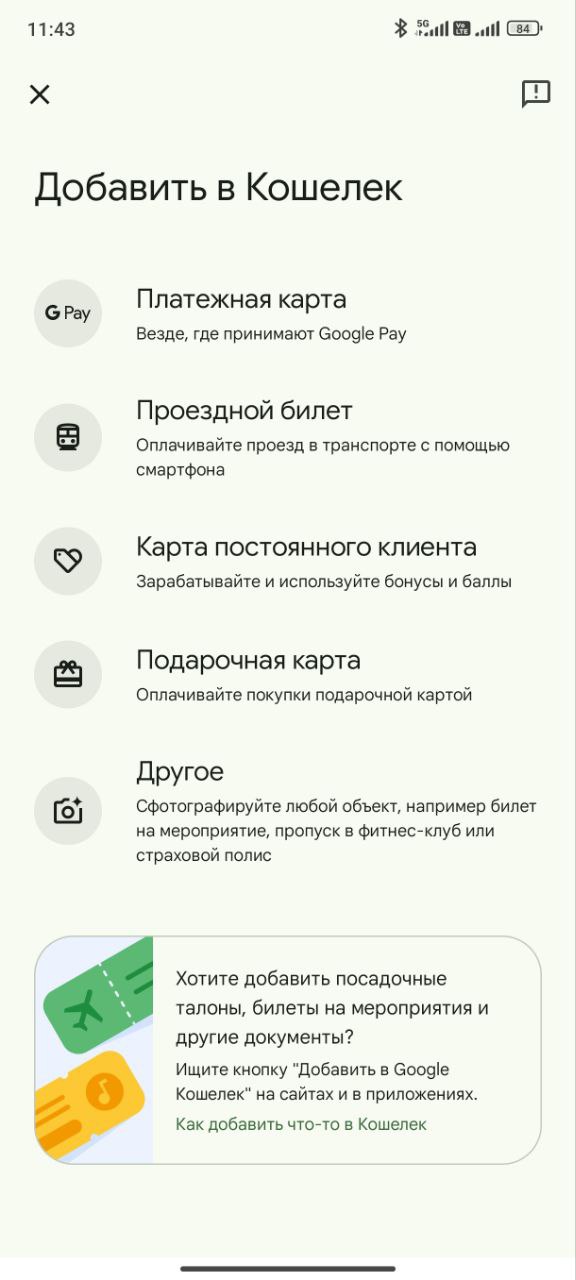
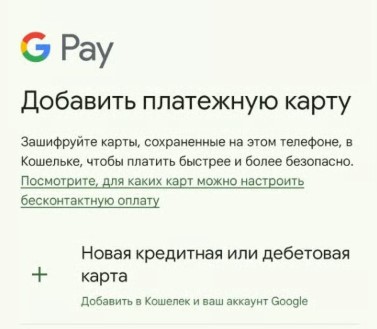
Step 2. Verify the code
During the flow, Google Wallet may ask for confirmation. For Flexy Travel SG:
- In the Terms of use section tap More → Accept
- If a code delivery method is shown, choose Email
- If Email does not work, return to verification and try Phone
- Enter the confirmation code and tap Continue
- 🎉 Done! Your card is activated and ready to use
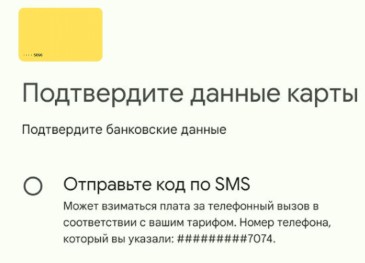
Important: 3DS / verification code method
For Flexy Travel SG, use Email first — verification succeeds this way most often. If Email does not work, try Phone.
If the card is not added or verification fails
- ✅ Make sure you are adding Flexy Travel SG (Singapore).
- 🌍 Start with the Singapore region; if it fails, try USA.
- 🧾 Start with a Singapore billing address; if Google Wallet rejects it, try a USA billing address.
- ✉️ For the 3DS / verification code method, try Email first; if it does not work, try Phone.
- 🧾 Double-check the card number, expiration date, and CVV / CVC.
If the problem persists, contact support: https://t.me/flexy_sup
and attach a screenshot of the error / verification screen.