🏬 Apple Store (USA) for Flexy Travel SG
Important: the issuer is in Singapore, but Flexy Travel SG must use the USA Apple ID region for Apple Store setup
🏬 Apple Store (USA): switch region and link a Flexy Travel SG card
Key point: Flexy Travel SG uses the USA region
Even though the issuer of Flexy Travel SG is in Singapore, to add this card to the Apple Store your Apple ID region must be United States / USA.
Do not select Singapore. For Apple Store setup, use United States.
To avoid confusion:
Flexy Travel SG → issuer Singapore, but Apple Store / Apple ID region → United States.
If you have Flexy Singapore (not Travel SG), use the Singapore region and the separate Flexy Singapore guide.
The steps below are the same as for Flexy USA. For Flexy Travel HG (Hong Kong), use the separate guide:
Apple Store for Flexy Travel HG.
Step 1. Change the Apple ID region to United States
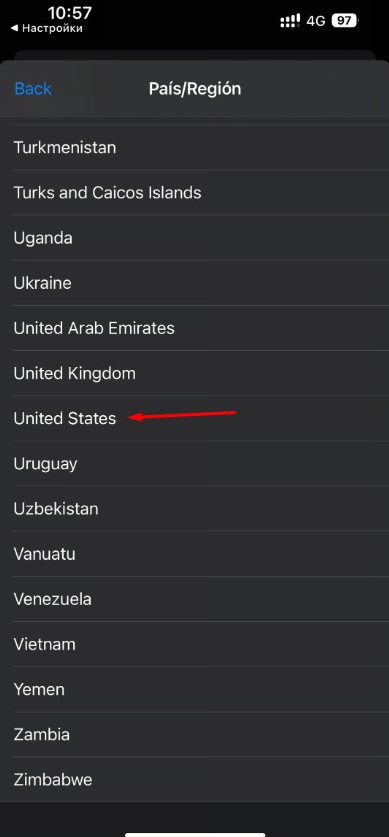
For Flexy Travel SG, make sure you choose United States at this step, not Singapore, even though the card issuer is in Singapore.
- Open Settings on your iPhone
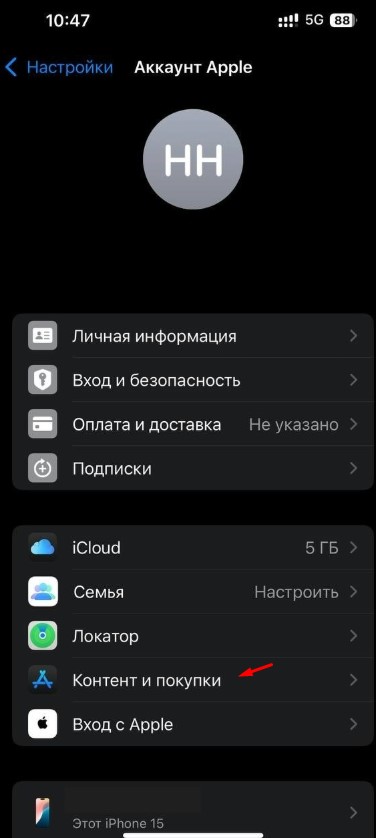
- Tap Apple ID (your name at the top)
- Open Media & Purchases
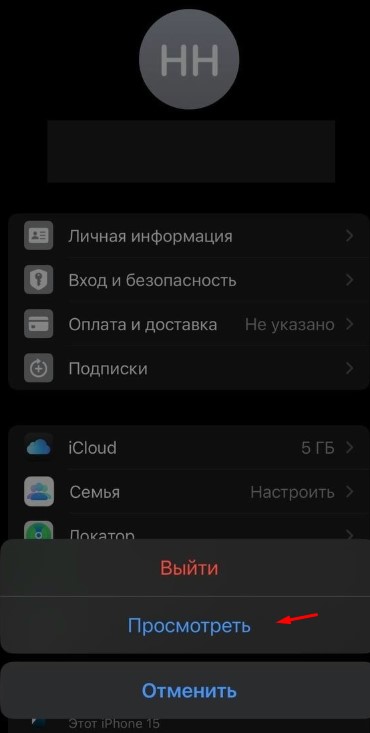
- Tap View Account
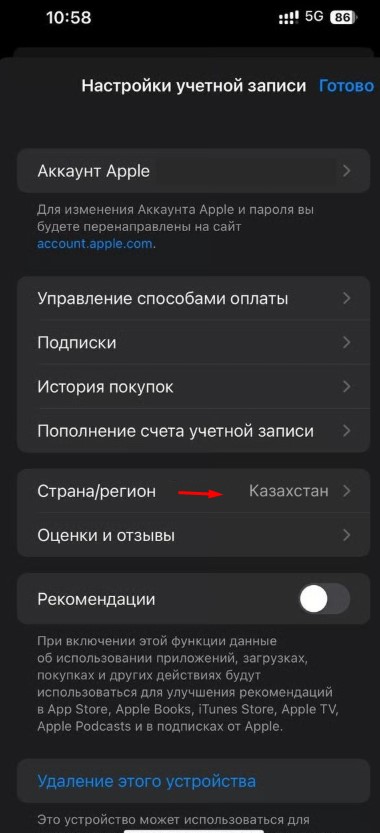
- Go to Country / Region
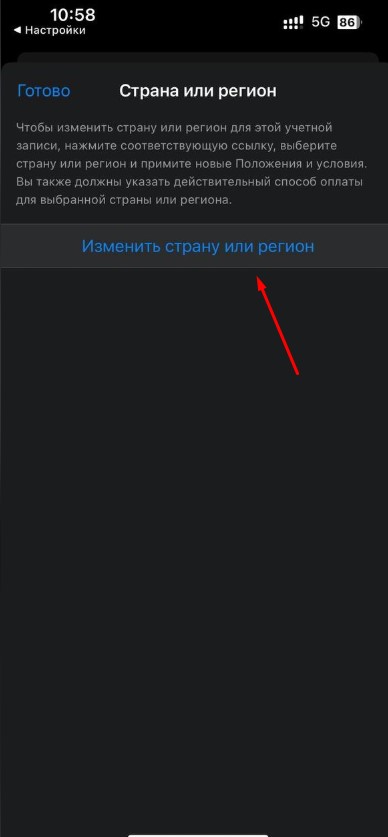
- Tap Change Country or Region and choose United States

Step 2. Fill in the billing address (USA)
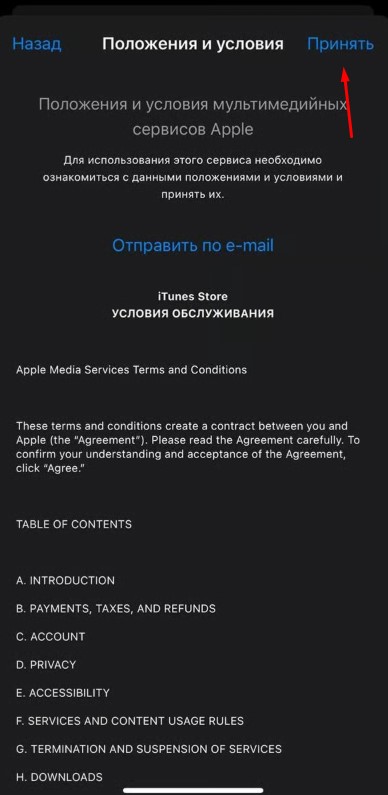
- In the Terms and Conditions window, tap Agree
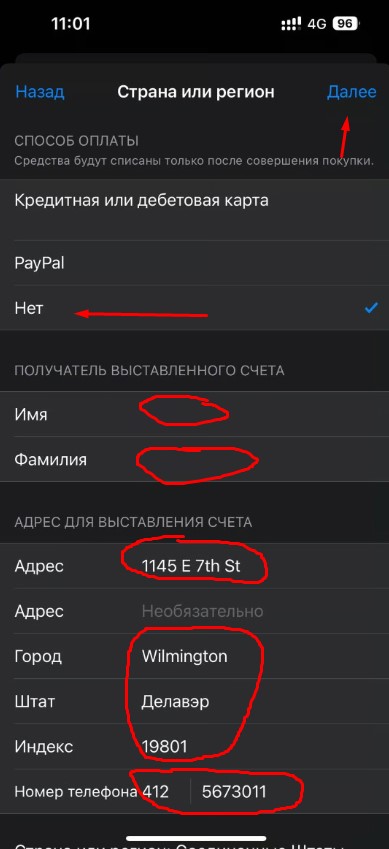
- In payment methods, choose None
- Enter your first and last name in Latin letters (your real names)
- In the same step, fill in the billing address exactly like this:
- Country: USA
- City: Wilmington
- State: DE (Delaware)
- ZIP: 19801
Address line 1: 1145 E 7th St
(if it is not accepted, try 1150 E 7th St)
- Address line 2: leave empty
Phone: 4125673011
(if it is not accepted, try 4121234567 or change the last digits)
If the form asks for a separate code field: enter 165 in the code field and 7 random digits in the phone field
Step 3. Add the card in “Payment & Shipping”
Before adding the card, check again that your Apple ID region is still United States. The issuer country Singapore does not mean that Singapore should be selected here.
- Close all windows and return to Settings
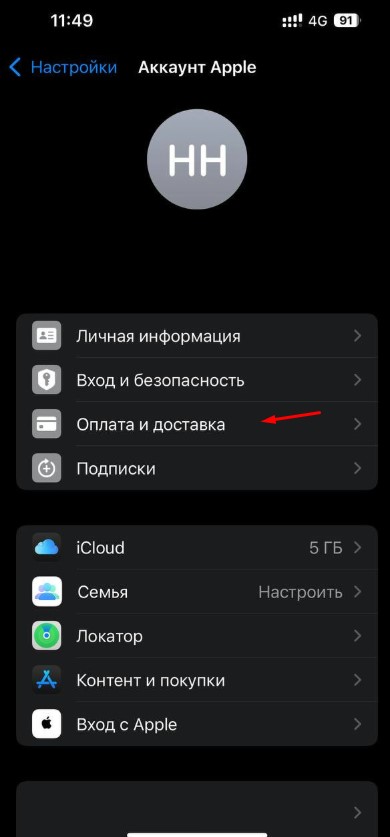
- Tap Apple ID (your name at the top)
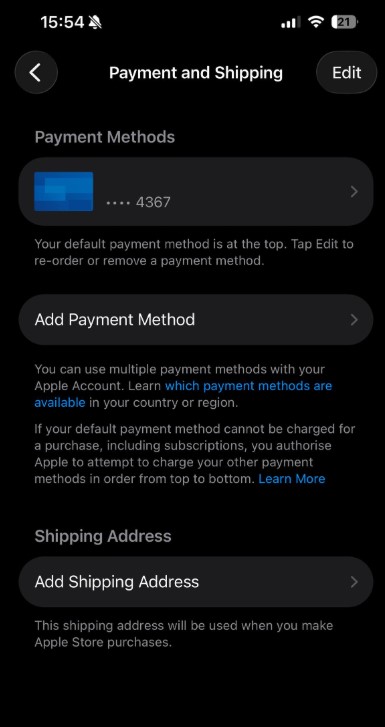
- Open Payment & Shipping
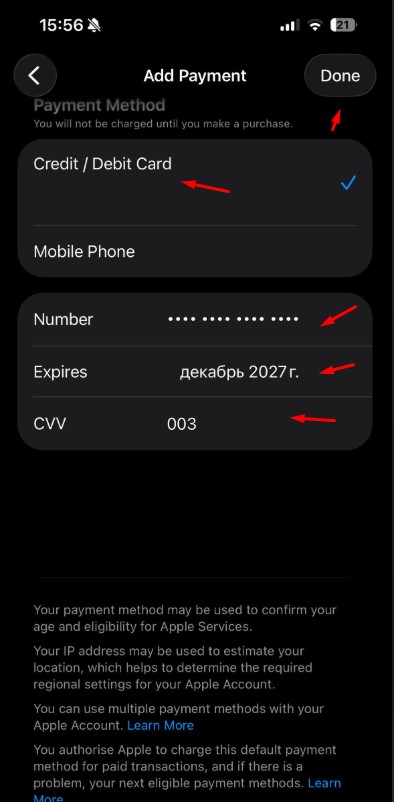
- Choose Credit / Debit Card
- Enter your card details (number, expiration date, CVV)
- Tap Done
🎉 Done — the card is linked and can be used for Apple Store payments.
If it does not work (address error / card verification error)
If Apple Store / Apple ID shows “invalid address”, “card verification error”, or “billing information invalid”, in most cases the reason is one thing:
Apple did not accept the billing address or phone number. This is normal — Apple’s checks are strict and sometimes picky.
What to do (usually fixes it)
-
✅ Make sure the Apple ID region is United States (Step 1), not Singapore. This is essential for Flexy Travel SG even though its issuer is in Singapore.
-
🧾 Recheck the billing address without extra characters (trailing spaces, wrong commas, line breaks, and so on).
-
🏠 If the address is not accepted — slightly change Address line 1:
- original: 1145 E 7th St
- try: 1150 E 7th St (or another nearby house number)
-
📞 If the “card verification” step fails — change the phone number:
- try another variant (for example 4121234567)
- or keep the same format but replace the last digits with random ones
- if there are separate code / number fields: 165 + 7 random digits
-
🗺️ If the error still remains — use a real address from Google Maps:
- choose any real address in the USA (preferably Wilmington, DE)
- make sure State / ZIP / City match one another
- then slightly adjust the last digits of the phone number again
Important
In Apple Store, a “card verification error” almost always means that the billing address / phone verification failed.
The most effective tactic is to slightly change Address line 1 or slightly change the phone number, or use another real address.
If the problem persists, contact support:
https://t.me/flexy_sup
Attach a screenshot of the error / verification screen and include the time of the attempt.