🍏 Add card to Apple Pay (Flexy Travel SG)
How to add a Flexy Travel SG card to Apple Wallet, use the USA region, and complete verification
💳 Apple Pay for Flexy Travel SG
Apple Pay is available for Flexy Travel SG cards (issuer country: Singapore).
IMPORTANT: even though the issuing bank is in Singapore, before adding Flexy Travel SG to Apple Pay, set the Apple ID / device region to USA (United States). Do not use Singapore as the Apple Pay region.
IMPORTANT FOR 3DS: if the verification flow lets you choose how to receive the code, for Flexy Travel SG try Email first — this works most often. If it does not work, try Phone.
Recommendations before adding the card (important)
Before you add the card to Apple Wallet:
- 🌍 Change the region / address in your device settings or Apple ID from Russia to USA (United States). Use this guide: Apple Store (USA) for Flexy Travel SG
- 🛡️ Turn on a VPN using any location except a Russian one. USA is preferred.
- 📍 Double-check: for Apple Pay with Flexy Travel SG, the region must be USA, even though the card issuer country is Singapore.
Important: contactless payments through Apple Pay work only in countries / regions where Apple Pay is not restricted.
Step 1. Add the card to Apple Wallet
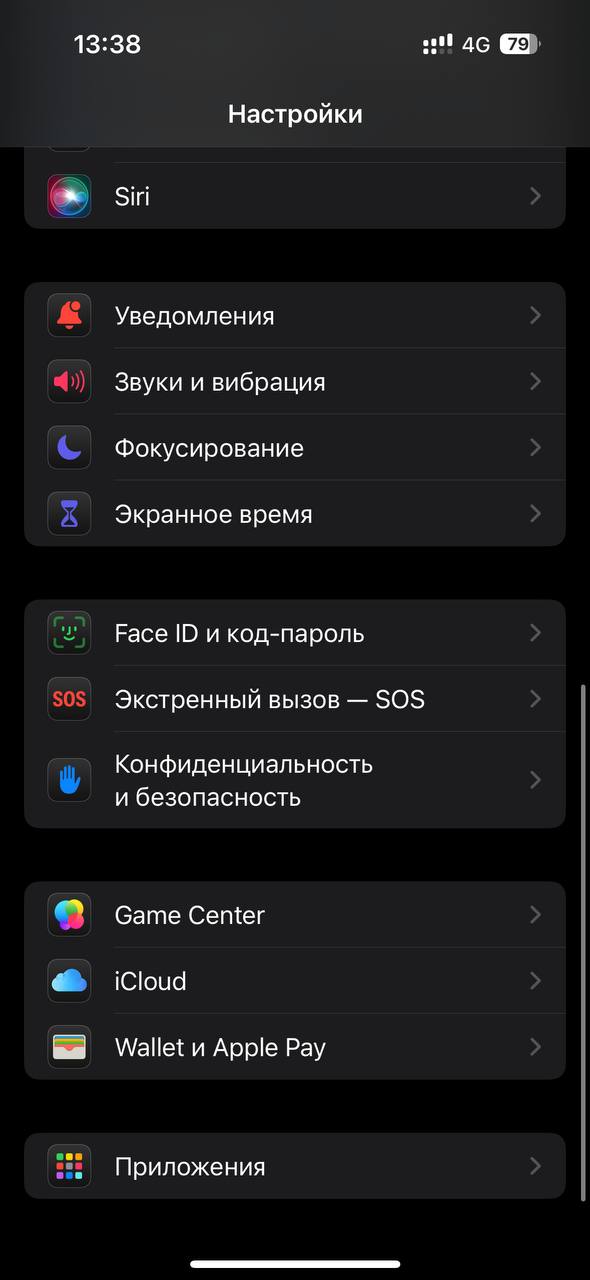
- Open the Settings app
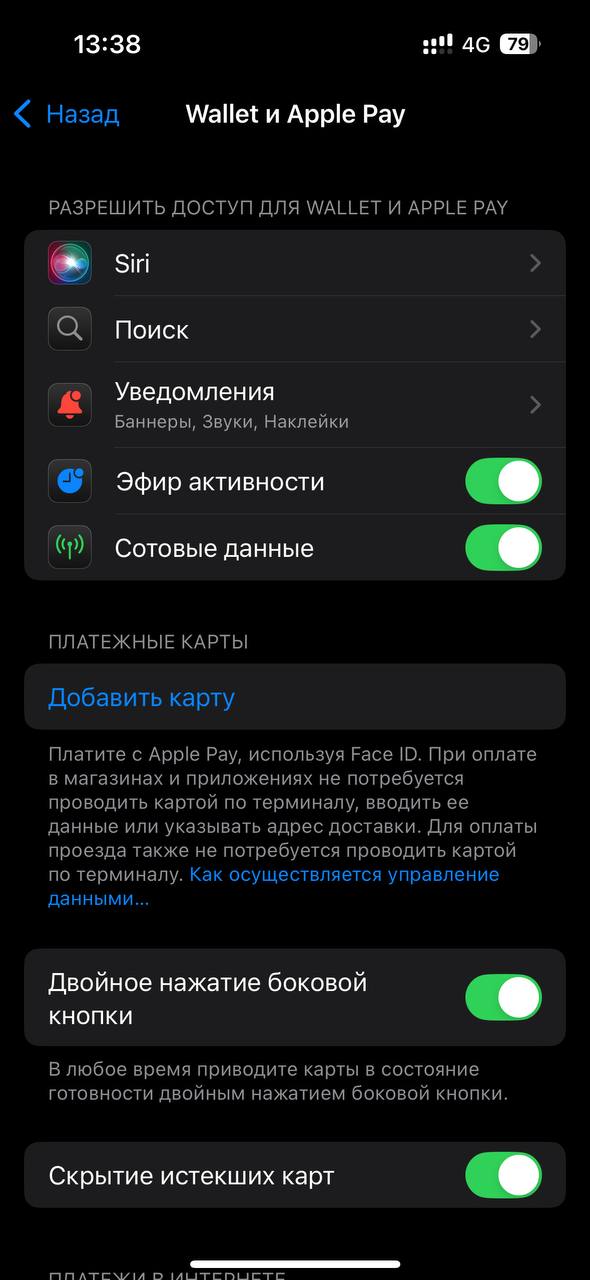
- Go to Wallet & Apple Pay
- Tap Add Card (in the “Payment Cards” section)
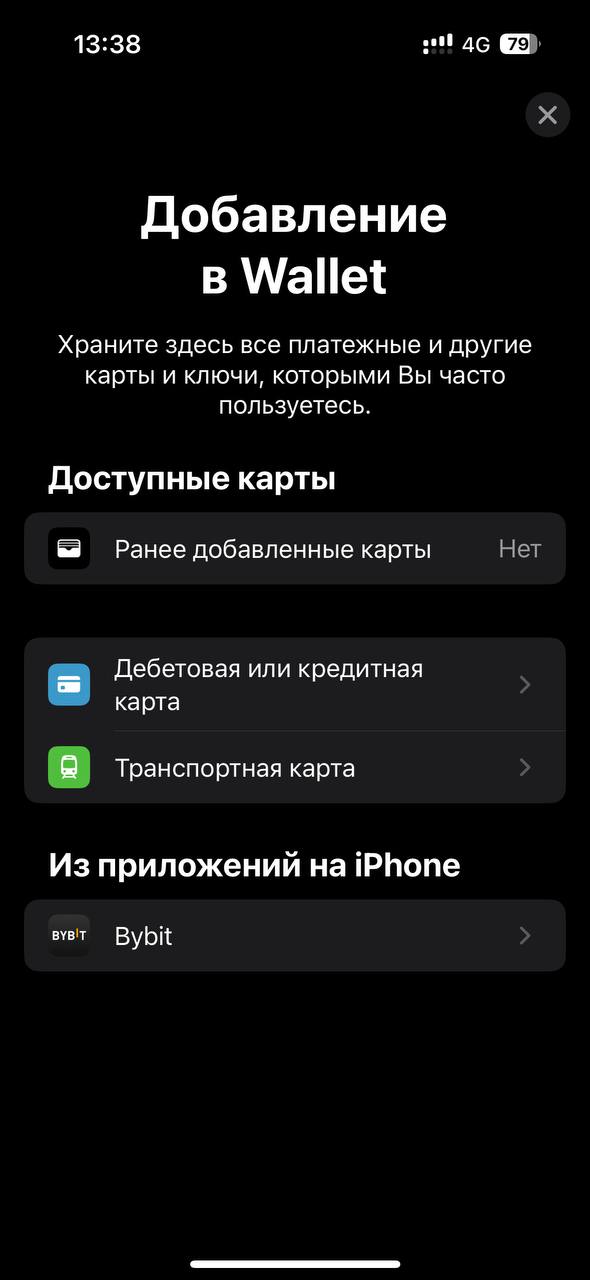
- Choose Debit or Credit Card
- Tap Continue
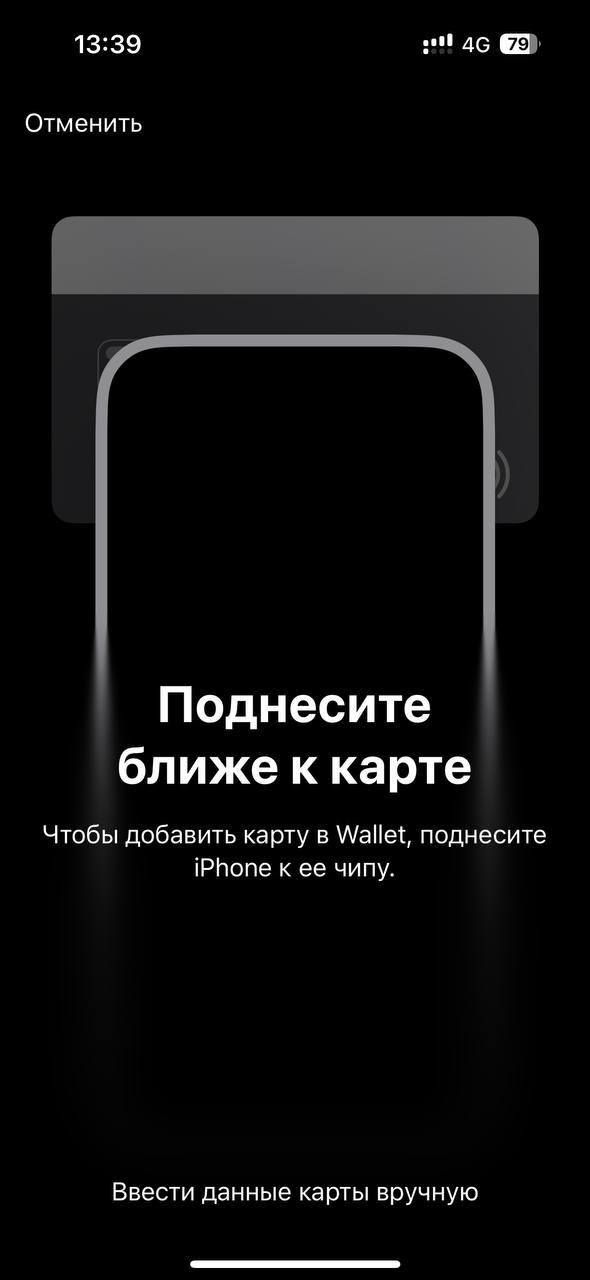
- Choose Enter Card Details Manually
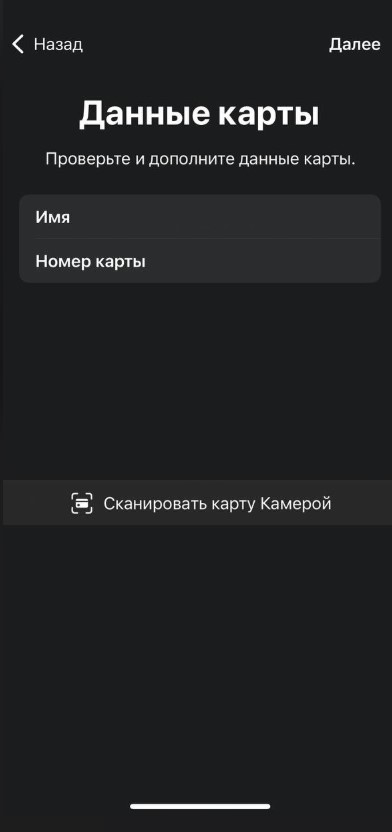
- Enter your first and last name in Latin letters and the card number, then tap Next
- Enter the expiration date and security code (CVV), then tap Next
- Accept the terms of use (Agree)

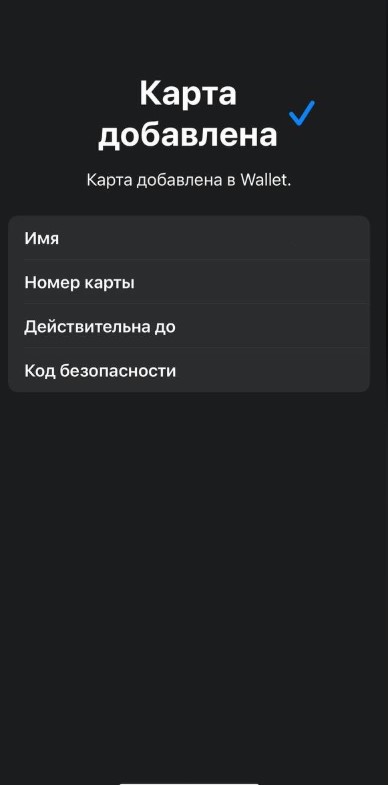
Common expiration date issue
Make sure the expiration date is entered in the correct format, for example: 01/2024
(the year is entered in full — 4 digits).
Step 2. Verify the card
After the card is added, the system may ask you to verify it:
- In the Card Verification section choose Email first
- Tap Next and complete verification
- If verification through Email does not work, return to the method selection and try Phone
- In Settings → Wallet & Apple Pay, open your card and tap Verification
- Enter the verification code and tap Next
- Done — the card is activated
Important: 3DS / verification code method
For Flexy Travel SG, select Email first — verification succeeds this way most often. If Email does not work, use Phone as the fallback.
If the card is not added or verification fails
- Check that the Apple ID / device region is set to USA (United States), not Singapore.
- Make sure you are adding Flexy Travel SG.
- For the 3DS / verification code method, try Email first; if it does not work, try Phone.
- Try the add / verification process once again.
- Make sure you enter the card details manually and without mistakes.
If the problem persists, contact support: https://t.me/flexy_sup