🏬 Apple Store (Singapore) for Flexy Singapore
How to switch the Apple ID region to Singapore and link Flexy Singapore directly during the region change
🏬 Apple Store (Singapore): switch region and link Flexy Singapore
Important: this guide is only for Flexy Singapore.
For Flexy Singapore, the Apple ID region must be changed to Singapore when linking the card to Apple Store.
Do not confuse it with Flexy Travel SG: its issuer is also in Singapore, but Apple Store setup uses the United States / USA region — see the separate Flexy Travel SG guide.
The card is added directly during the region change.
In this guide you do not select None first and then open Payment & Shipping later. After choosing Singapore, enter the Flexy Singapore card details and billing address immediately.
This guide will help you:
- switch the Apple ID region to Singapore;
- accept the terms for the new region;
- add Flexy Singapore directly during the region change;
- fill in the billing address and phone correctly;
- troubleshoot address or card-linking errors.
Step 1. Open Country/Region settings
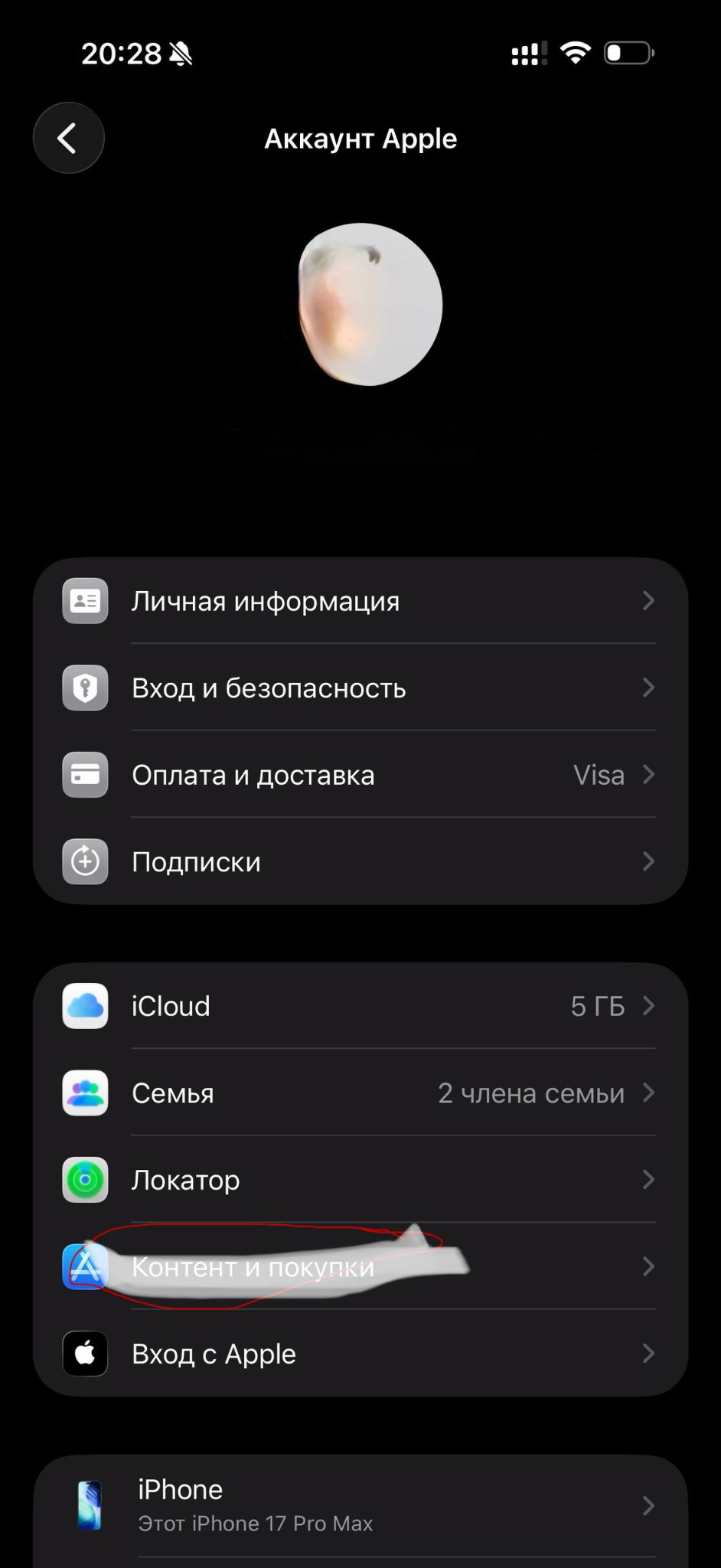
- Open Settings on the iPhone.
- Tap your Apple ID name at the top.
- Open Media & Purchases.
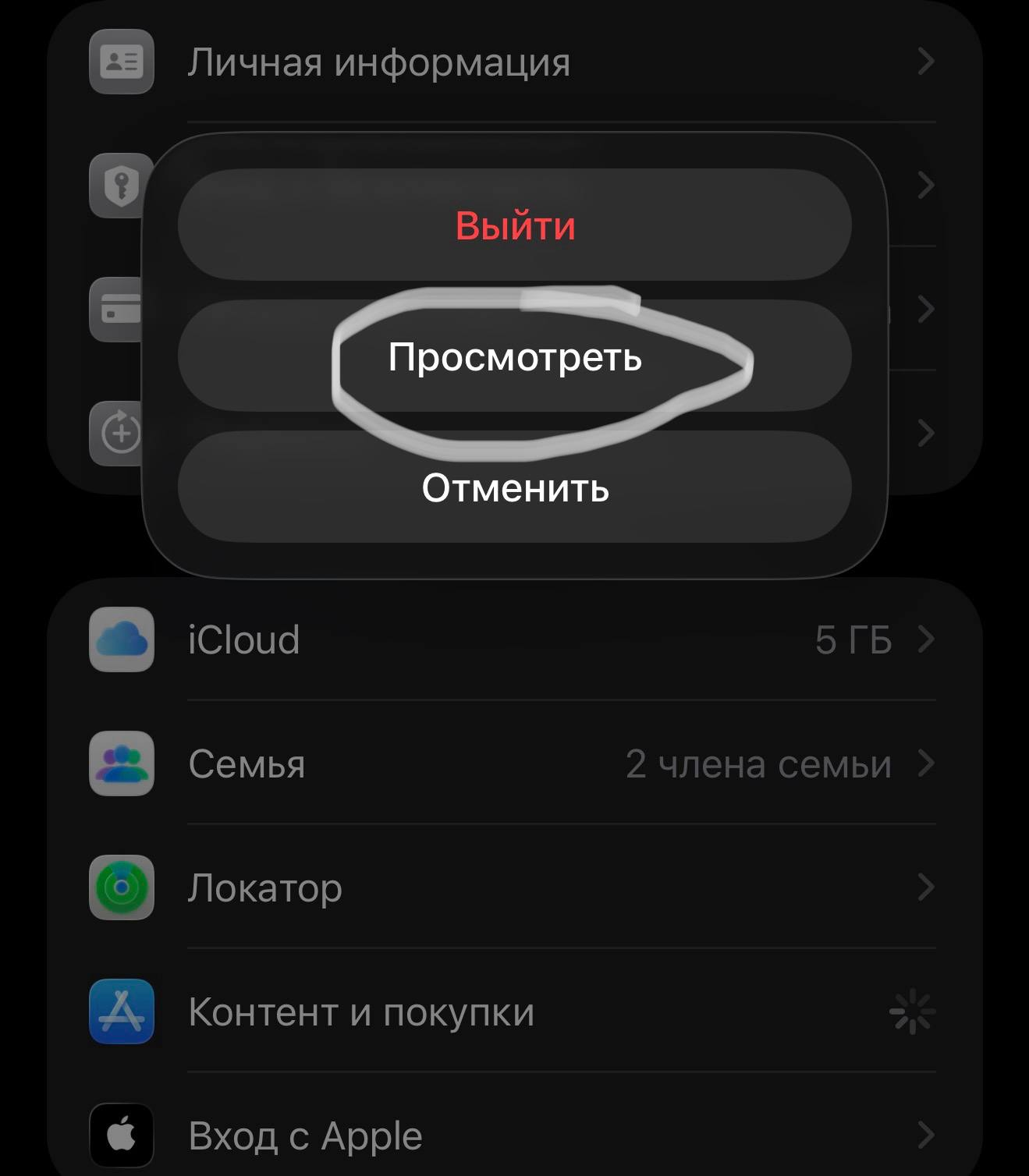
- Tap View Account.
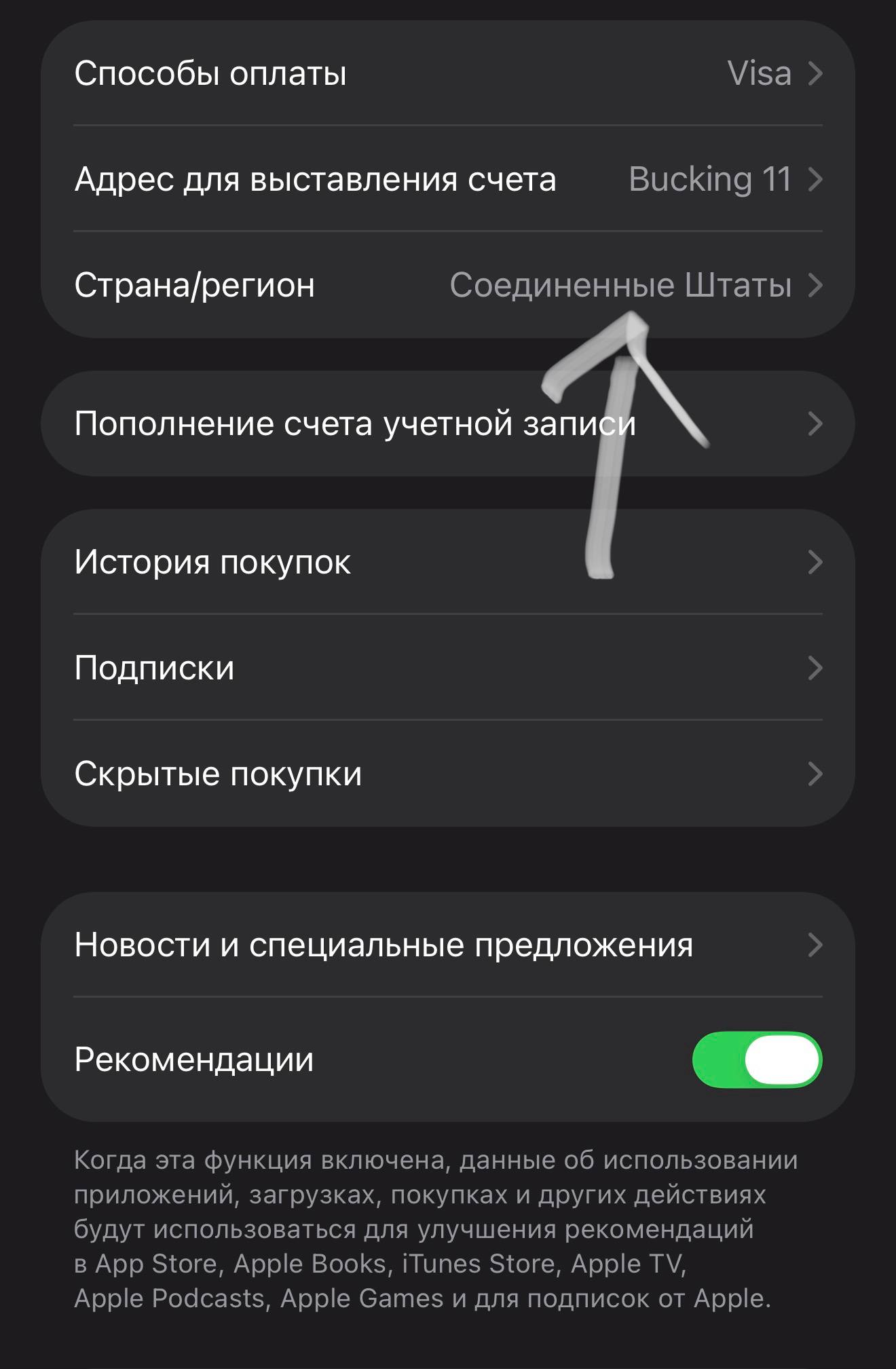
- Open Country/Region.

Step 2. Change the region to Singapore
- Tap Change Country or Region.
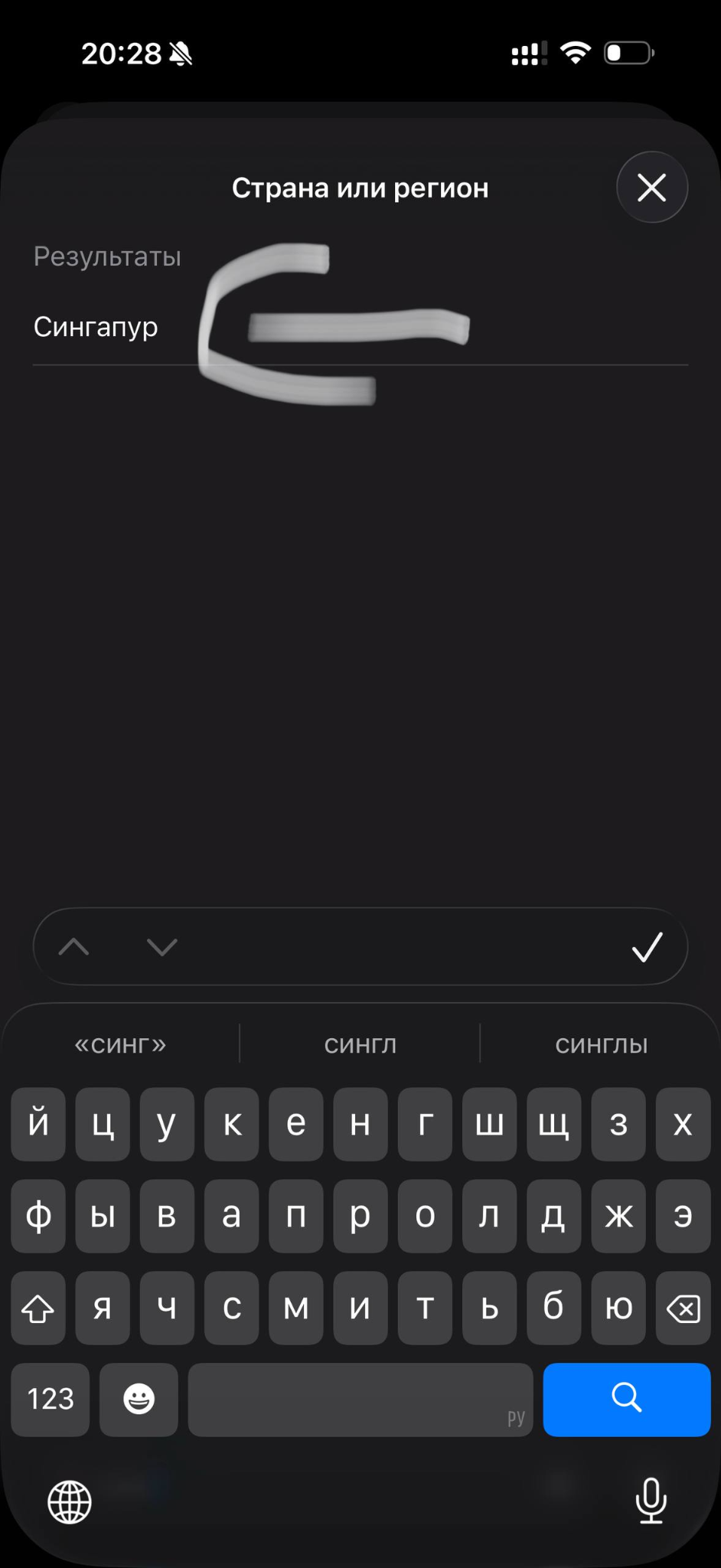
- Find and select Singapore.
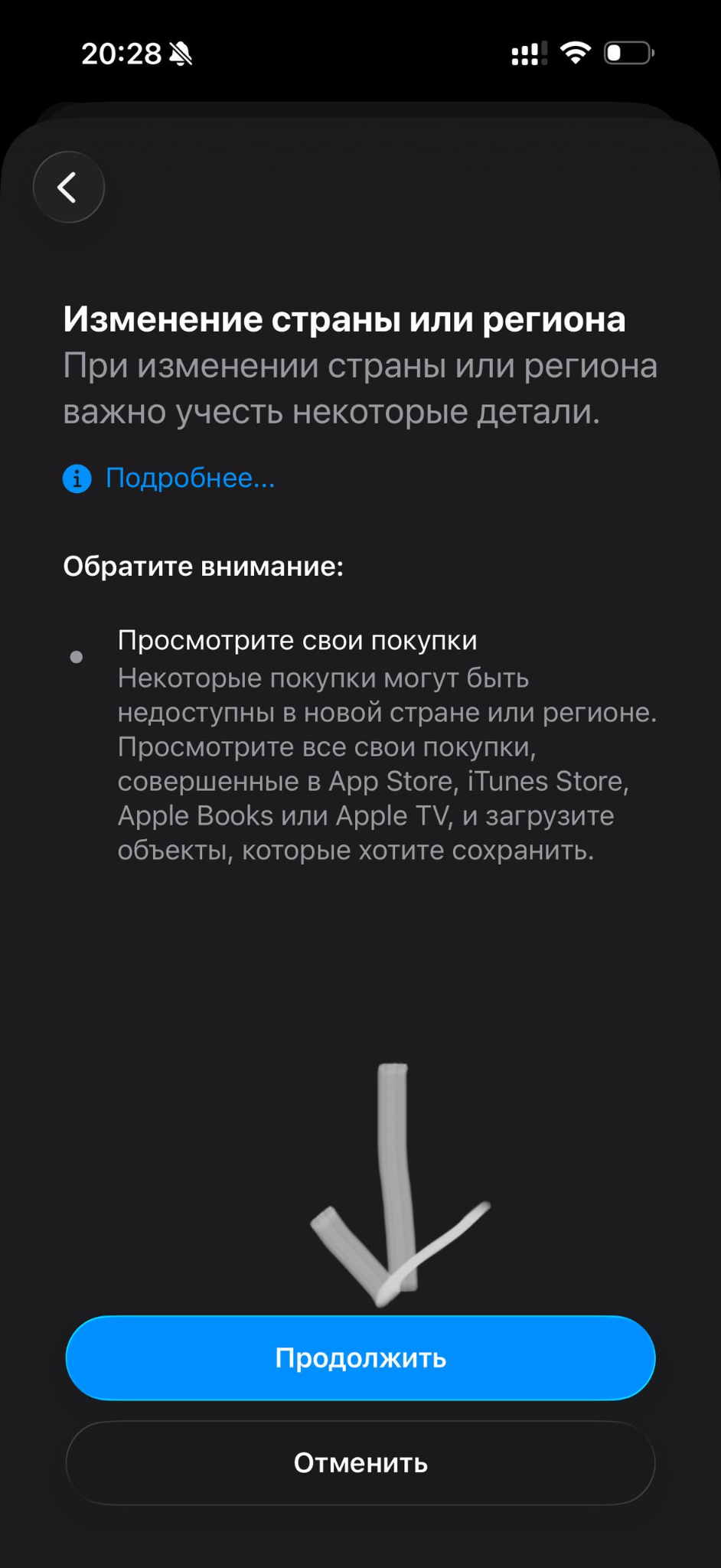
- On the country/region change screen tap Continue.
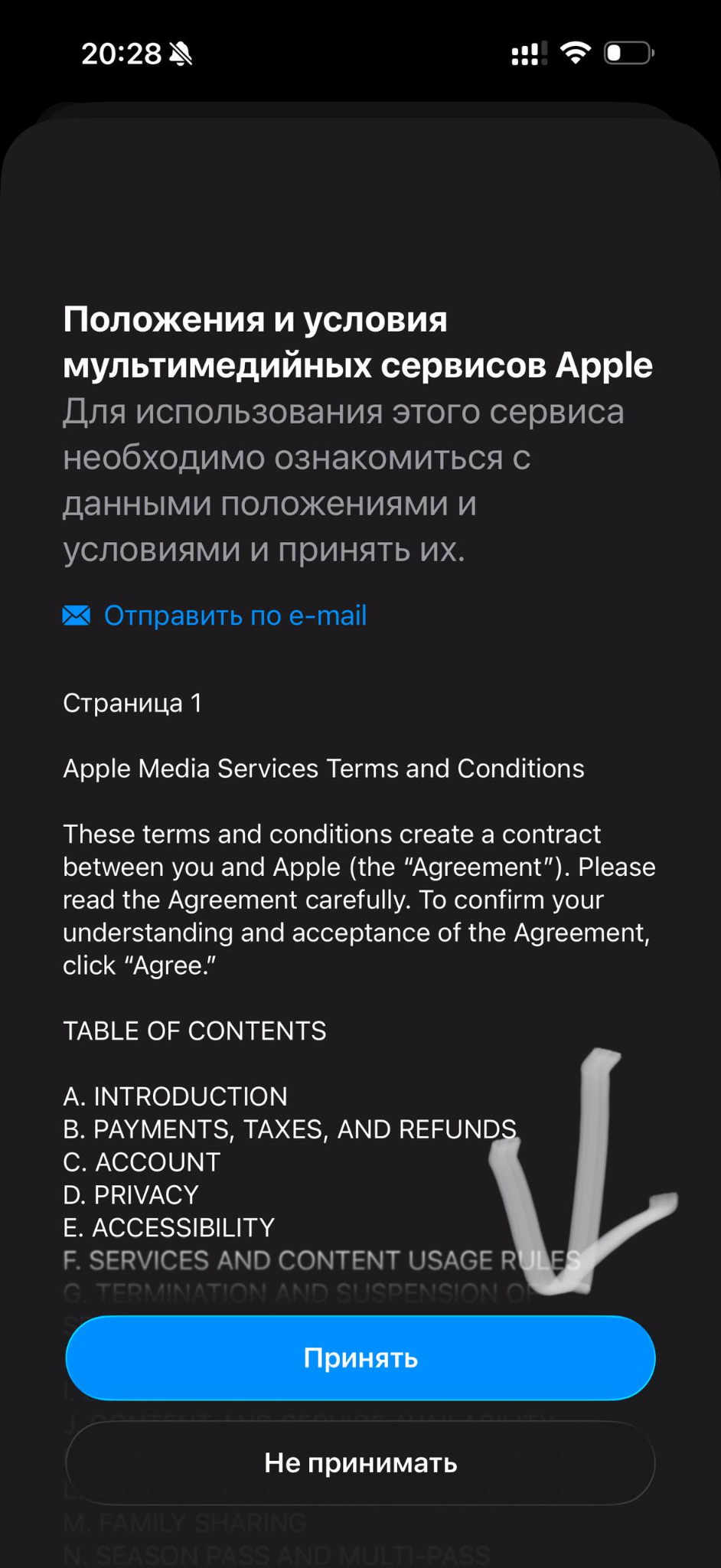
- Review the Apple Media Services Terms and Conditions and tap Agree.
For Flexy Singapore, the selected region must be Singapore. If United States, Hong Kong, or another region is left selected, the billing details may fail verification.
Step 3. Add Flexy Singapore and the billing address immediately
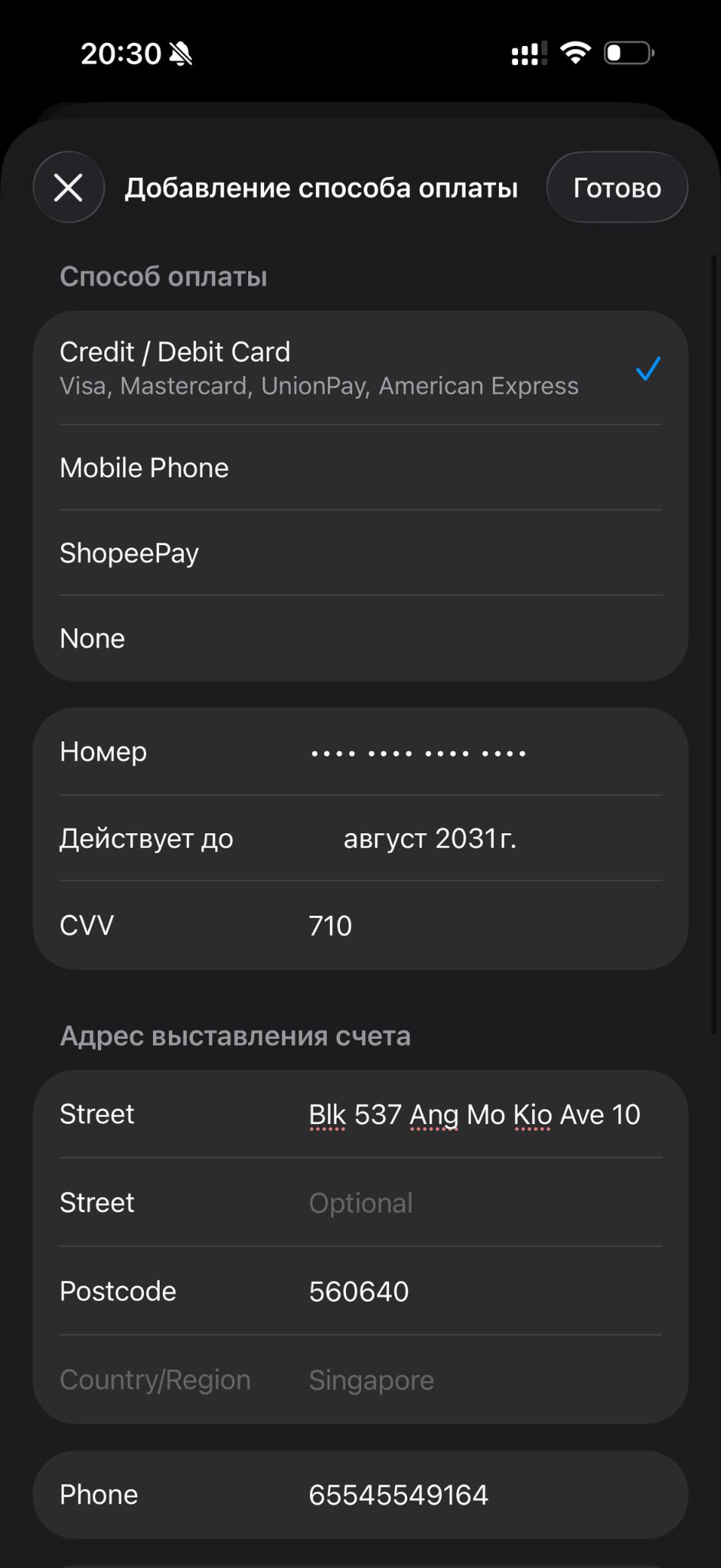
After accepting the terms, Apple opens the Add Payment Method screen. Link the Flexy Singapore card here, while changing the region.
- Under Payment Method, select Credit / Debit Card.
- Enter your Flexy Singapore card number, expiry date, and CVV.
- Fill in the Billing Address.
- Tap Done.
Singapore billing address
Recommended: open the card details in the Telegram mini-app and use the billing address shown in the card details section. Use that address first instead of a random address.
- Country / Region: Singapore
- Street: Blk 537 Ang Mo Kio Ave 10
- Street 2: leave blank if not needed
- Postcode: 560640
- Phone: 65545549164
- Street: the value above is an example; preferably use the Street from your card's billing address in the mini-app.
- Postcode: 560640 is an example. If the card details show another postcode, use the postcode from the mini-app.
- Phone: you can use 65545549164 or another random number with the same length: 11 digits starting with 65.
🎉 Done — after saving, the Flexy Singapore card will be linked to Apple Store in the Singapore region.
If Apple rejects the address or the card does not link
If you see “invalid address”, “billing information invalid”, “could not verify card”, or the card does not save, check the billing address first and try another valid address variation.
What to try
-
✅ Make sure the Apple ID region is actually Singapore.
-
🧾 Open the Flexy Singapore card details in the Telegram mini-app again and re-check the Street / Postcode / Country from the card billing address.
-
🏠 If Apple does not accept that address, change the address and try linking the card again:
- slightly change the block/building number or Street line;
- use another real Singapore address;
- make sure the Postcode matches the selected address.
-
📮 As an example, you can try:
- Street: Blk 537 Ang Mo Kio Ave 10
- Postcode: 560640
-
📞 If the error continues, change the phone number. Keep the format at 11 digits with the first two digits 65, for example 65545549164, but change the remaining digits.
-
🔁 After changing the address or phone, save the card again. Apple may accept the card on a repeat attempt with a different valid Singapore billing address.
Main rule: for Flexy Singapore the Apple ID region is Singapore. If linking fails, use the billing address from the mini-app first; if Apple rejects it, change the address/phone and try linking the card again.
If the problem continues, contact support: https://t.me/flexy_sup
Attach a screenshot of the error and mention that you are adding Flexy Singapore to Apple Store in the Singapore region.