Apple Pay / Google Pay / Apple Store
🤖 Add card to Google Pay (Flexy Travel HG)
How to add a Flexy Travel HG card to Google Wallet and verify it by SMS
💳 Google Pay for Flexy Travel HG
This guide is for Flexy Travel HG cards (issuer country: Hong Kong). Flexy Singapore also supports Google Pay, but its setup parameters may differ from this HG-specific guide.
📲 If Google Wallet is not installed
Install the Google Wallet app using this link:
https://play.google.com/store/apps/details?id=com.google.android.apps.walletnfcrel
Recommendations before adding the card (important)
Before you add the card, we recommend:
- 🌍 Change the region / address in your device settings or Google account from Russia to Hong Kong.
- 🛡️ Turn on a VPN using any location except a Russian one.
- 📍 Make sure the region and country data on the device match the card issuance region (Hong Kong).
Step 1. Add the card
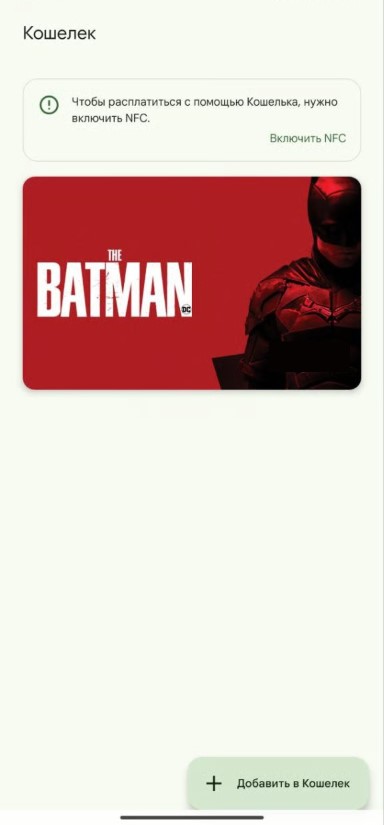
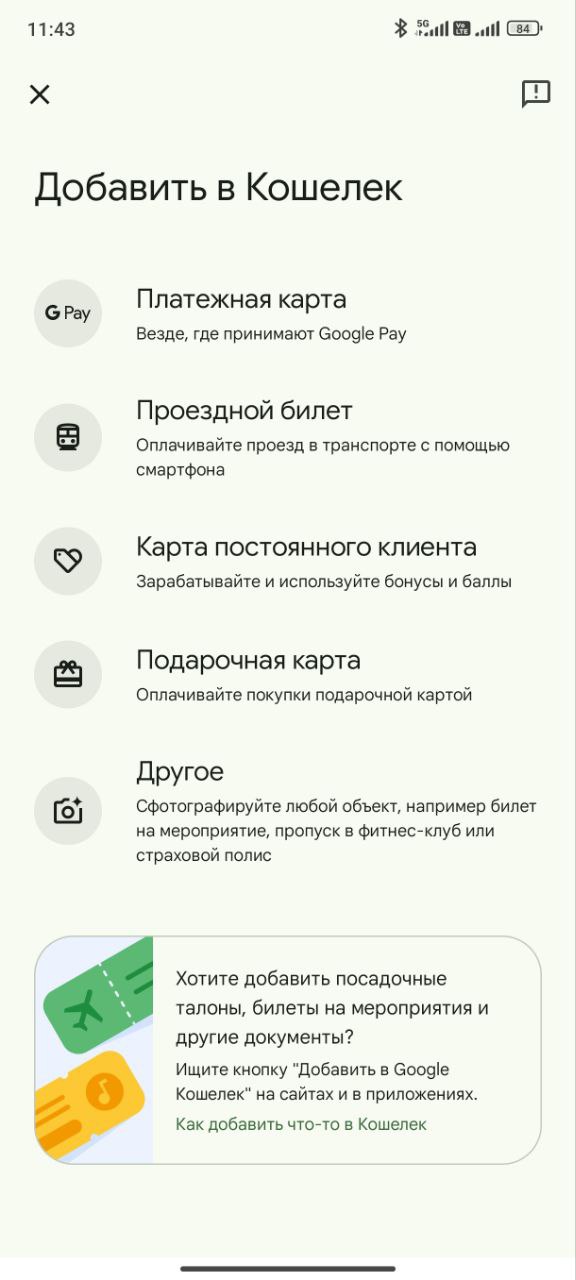
- Open the Google Wallet app
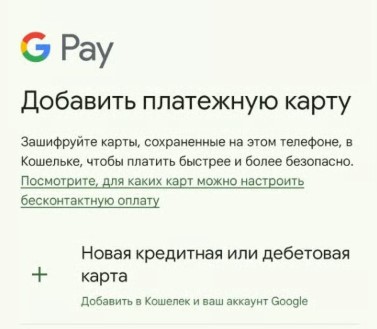
- Tap Payment card
- Choose New credit or debit card
- Tap Enter details manually
- Fill in the card fields: Card number, Expiration date, CVC
- Enter the billing address below if it has not been added before
- Tap More → Save and continue
Step 2. Verify the code
During the flow, Google Wallet may ask for confirmation. Use these steps:
- In the Terms of use section tap More → Accept
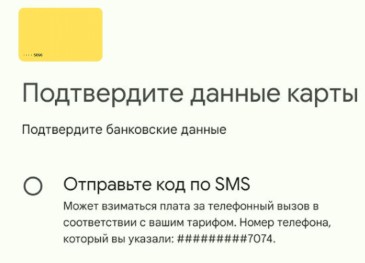
- Tap Send code by SMS → Continue
- Enter the confirmation code and tap Continue
- 🎉 Done! Your card is activated and ready to use
Where to get the code
The confirmation code is sent to our Telegram bot.
Usually it takes a few minutes.
If the card is not added or verification fails
- ✅ Make sure you are adding exactly Flexy Travel HG (Hong Kong).
- 🌍 Make sure the region / address is changed to Hong Kong and the VPN is enabled (not Russia).
- 🔁 Repeat the add flow and choose confirmation via Send code by SMS.
- 🧾 Double-check the card number, expiration date, and CVV / CVC.
If the problem persists, contact support: https://t.me/flexy_sup
and attach a screenshot of the error / verification screen.